TV dashboards
Put your dashboard on the TV. It stays on and updates itself.
Safe-days counters on the shop floor, today's sales in the store, the numbers on the lobby screen: nobody needs to walk over with a remote to refresh them. Publish the dashboard to LivePage and open the same link on the TV in large-screen mode: full screen, no sleep, and it changes the moment the content does. On a phone, the same link reads as a vertical page.
Public dashboards open directly on the TV. For private or passcode dashboards the TV shows a code; scan it with WeChat on your phone to approve.
 Data updated 08:30 · Online
Where people hang them
These templates are laid out for a big screen. “On a TV” opens large-screen mode; pick one and make your own.
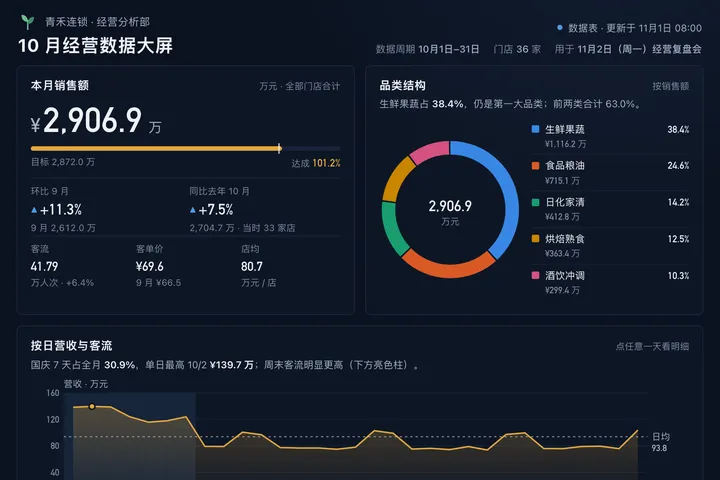
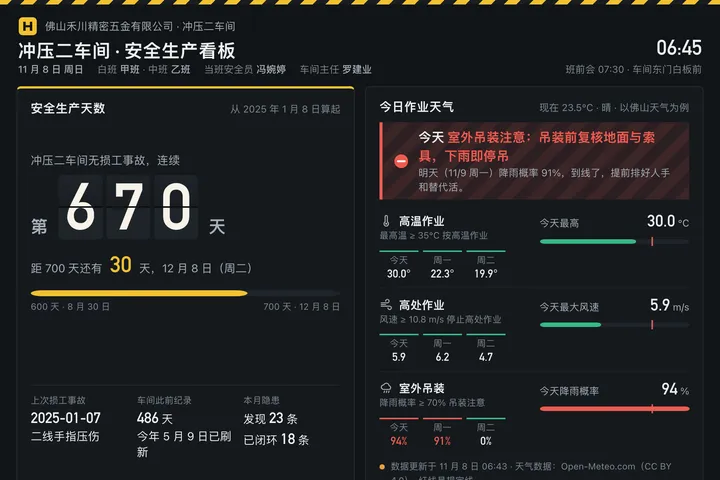
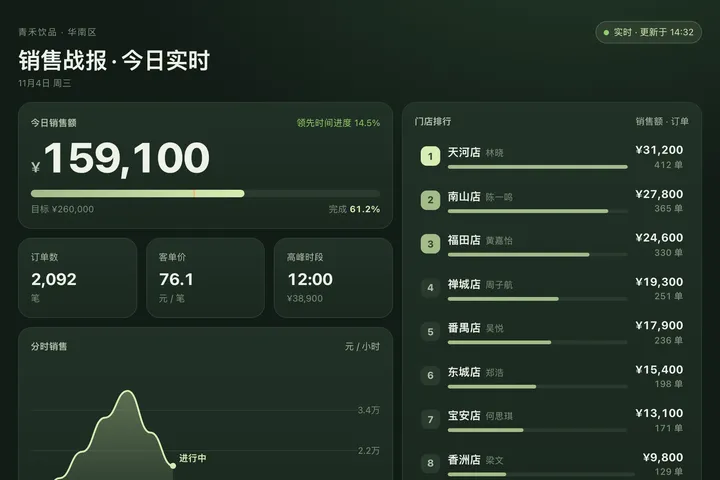

On the wall in three steps
Make a dashboard
Start from a template below and ask your agent in one sentence, or use a report or scoreboard already on LivePage.
Open the link on the TV with ?screen=1
Open the dashboard link in the browser of the TV, TV box or meeting-room display and add ?screen=1 at the end (use &screen=1 if the link already has a question mark) to enter large-screen mode.
Private dashboards: approve from your phone
If the dashboard is not public, the TV shows a 6-character code and a QR code. The author scans it with WeChat and taps Allow; the TV opens the dashboard within seconds and can open it directly for the next 90 days.
What it does on its own once it is up
Stays awake
Where the browser allows it, the page keeps the screen on. Turn off the TV's own screensaver or sleep timer in its settings.
Changes when the content does
A new version or new rows in a data table show up on the TV automatically, with no prompt and no remote.
Tells you it is current
The corner reads “Data updated HH:MM · Online”; after 2 minutes offline it turns yellow and reconnects; if the dashboard sets a freshness limit and misses it, it turns red.
Content only
Large-screen mode hides the reader buttons so the dashboard fills the whole screen.
Will it work on your TV
Large-screen mode is a web page, so any screen with a browser can show it. Many TVs sold in China ship without one; check yours below:
| Meeting-room displays | ✓ | Built-in browser; open the link. |
| A computer connected to a TV or projector | ✓ | Open it in the browser and press F11 for full screen. The most reliable option. |
| Android TVs and TV boxes | ✓ | Install a browser from the TV's app store, then open the link. |
| Phone screen mirroring | △ | Fine for a quick show; the phone has to stay on, so not for all day. |
| TVs that cannot install apps | △ | Plug in an Android TV box or stick over HDMI. |
Is a private dashboard safe on a TV
- An approval covers this one dashboard only; the TV cannot see any other page in the workspace.
- No account or passcode is entered on the TV; the approval happens on the author's own phone.
- It expires after 90 days unused, and you can revoke it under “TV devices” in the console at any time; the TV returns to the pairing screen within half a minute.
FAQ
Does the TV need to sign in to LivePage?
No. Public dashboards open directly; for private or passcode dashboards the author approves the TV by scanning with WeChat, and nothing is typed on the TV.
Does it cost anything?
Large-screen mode for public dashboards is free. Keeping a private or passcode dashboard on a TV needs an approved TV device; see the pricing page for how many each plan allows.
How do I update the dashboard?
Ask your agent to publish the updated dashboard again. The link stays the same and the TV switches to the new version; changes to its data tables (check-ins, sales) refresh on their own too.
What if the TV loses network or restarts?
The corner turns yellow while offline and reconnects when the network is back. After a restart, open the link again in the browser; a private dashboard needs no new approval within 90 days.
Can people still read it on their phones?
Yes. The same link opens in a phone layout in WeChat, so you can share it in a group; the TV and the phones show the same current data.